
Release Date: June 24, 2026
Summary
The June 2026 release brings IQ Boost to the Maximizer mobile app and introduces a new Investments Dashboard that gives advisors a single view of client portfolios. IQ Boost also connects to real-time web data and a global server, AI Timeline Summaries become privacy-aware in the Outlook add-in, and tasks now support start dates so teams know when work should begin, not just when it is due.
New Features
IQ Boost in Mobile
Edition: Financial Services Edition +, Business+
Area: Mobile
What's new
IQ Boost is now available in the Maximizer mobile app, giving you on-the-go access to client insights. From the Today screen, tap the IQ button to open IQ Boost, select a Contact or Household, and start asking questions, choosing from predefined prompts built for financial services or typing your own. The app surfaces your most recently used contacts for quick access, and you can search your Contact List for anyone else.
Why it matters
Client conversations don't always happen at a desk. IQ Boost in the Maximizer mobile app puts the intelligence of your CRM in your pocket, so you can walk into every meeting fully briefed, follow up on the spot, and stay on top of client relationships wherever the day takes you.
How it works
- Make sure IQ Boost is enabled in your Maximizer app under AI Hub > IQ Boost Insights. If you don't have access, contact your Maximizer system admin or account manager, or support@maximizer.com.
- Open the Maximizer mobile app and tap the IQ button on the Today screen.
- Select a Contact or Household.
- Choose a predefined prompt or type your own question in the chat.
- Review the response. Predefined prompts return a structured summary; custom questions get a conversational reply.
- Save a note to the client's record or copy the response to your clipboard. Use the feedback buttons to rate any response or suggest new predefined questions.
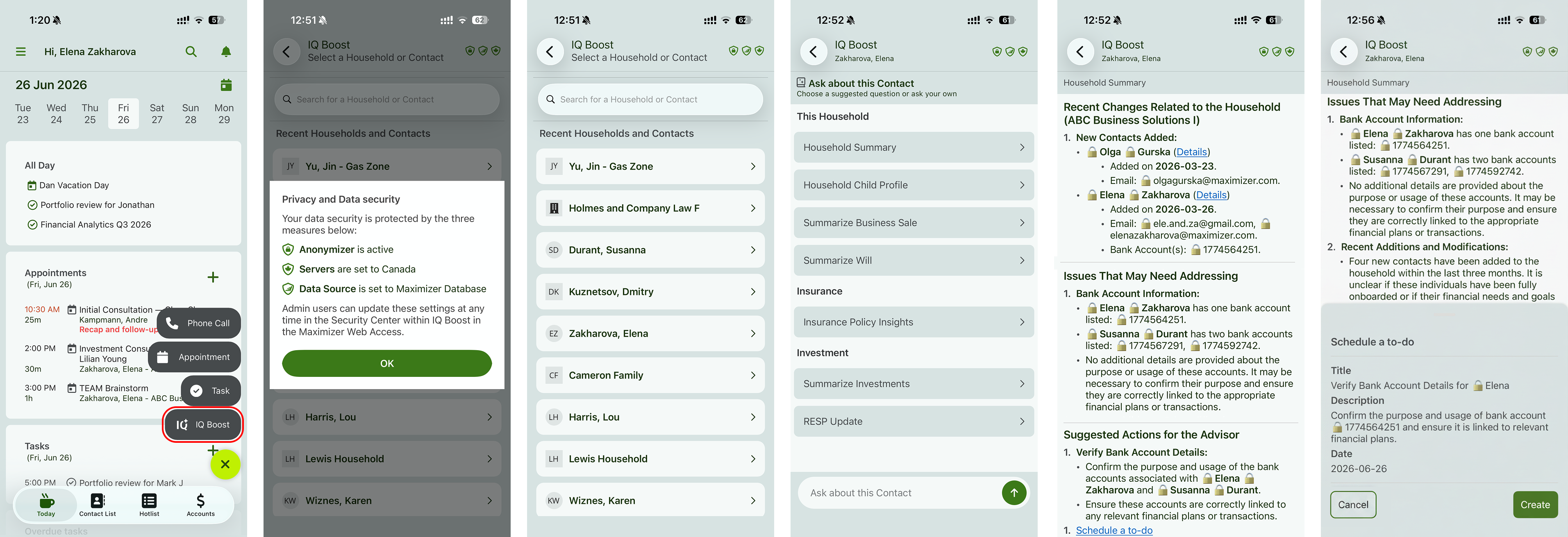
IQ Boost in the Maximizer mobile app, opened from the Today screen.
Investments Module
Edition: Financial Services Edition
Area: Web
What's new
The new Investments Dashboard gives you an all-in-one view of your clients' portfolios directly in Maximizer. Visualize asset allocation, total market value, and performance trends, and drill down into specific accounts and holdings in one interactive dashboard.
Why it matters
The Investments Dashboard helps advisors understand portfolios at a glance, spot opportunities, and give more proactive advice. It simplifies portfolio reviews, supports client meetings, and saves time by bringing investment data and analytics together in one place.
How it works
- Open the new Investments module from the left pane menu.
- Browse interactive charts and summary cards for asset allocation, account balances, top holdings, and households.
- Click any chart or account for more detail, or drill into an individual client portfolio without leaving the dashboard.
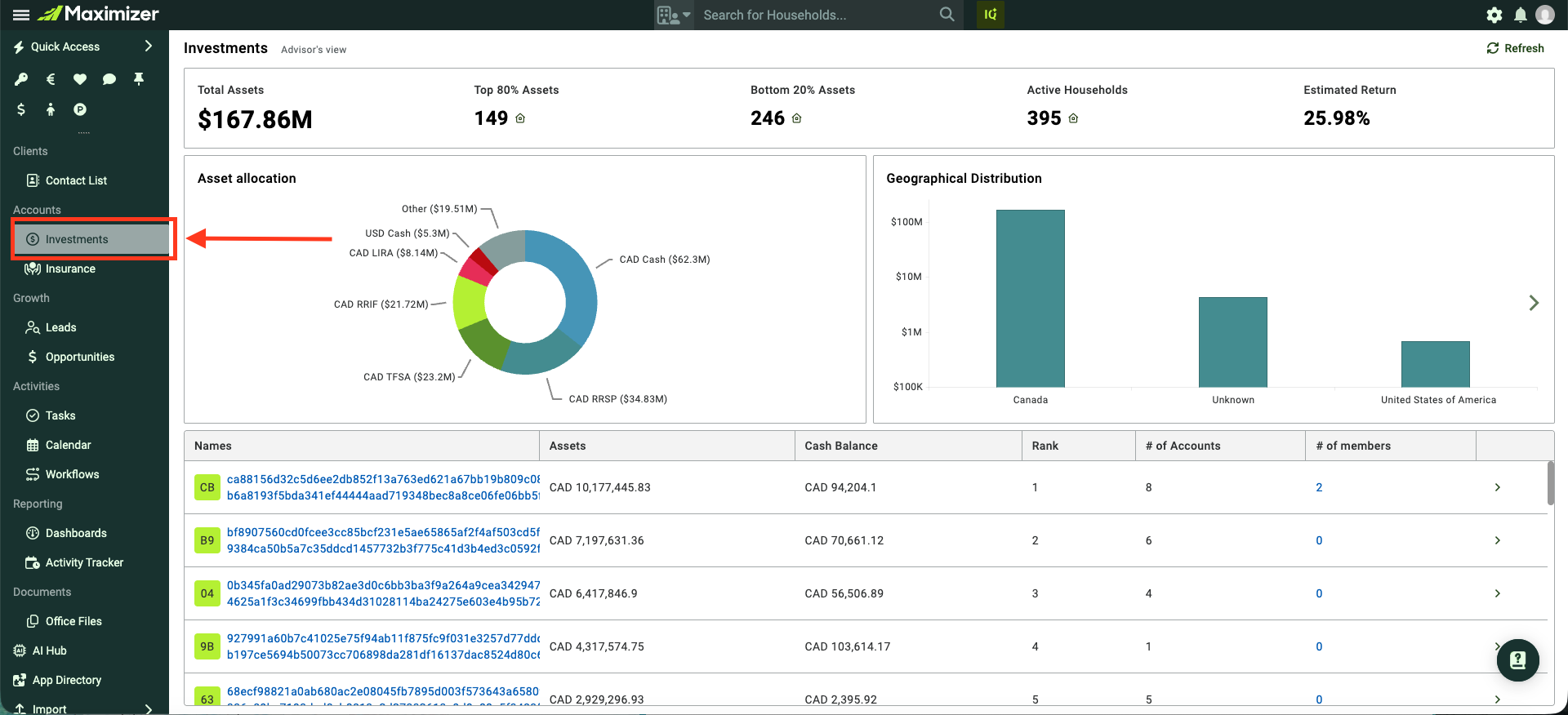
Access the Investments module from the left pane menu.
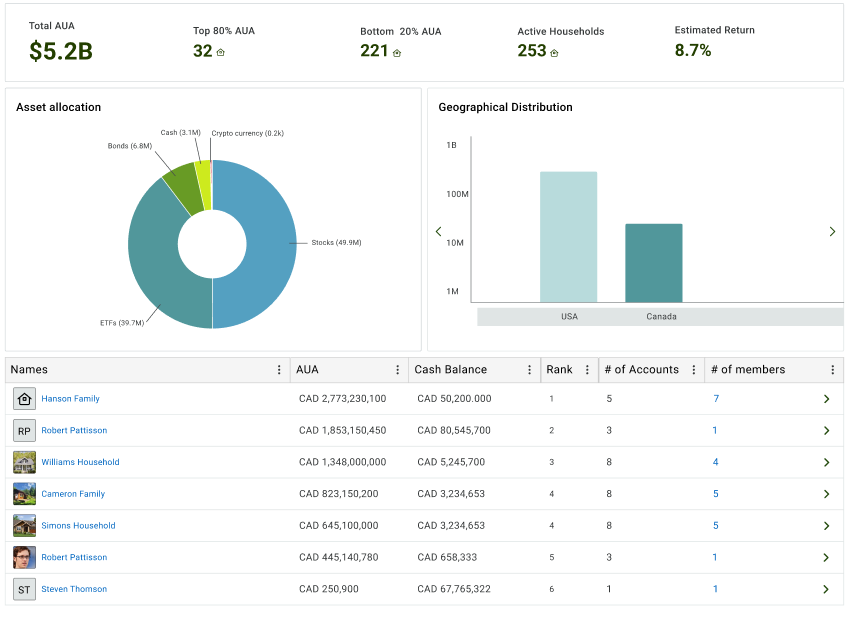
Browse the interactive charts in the dashboard.
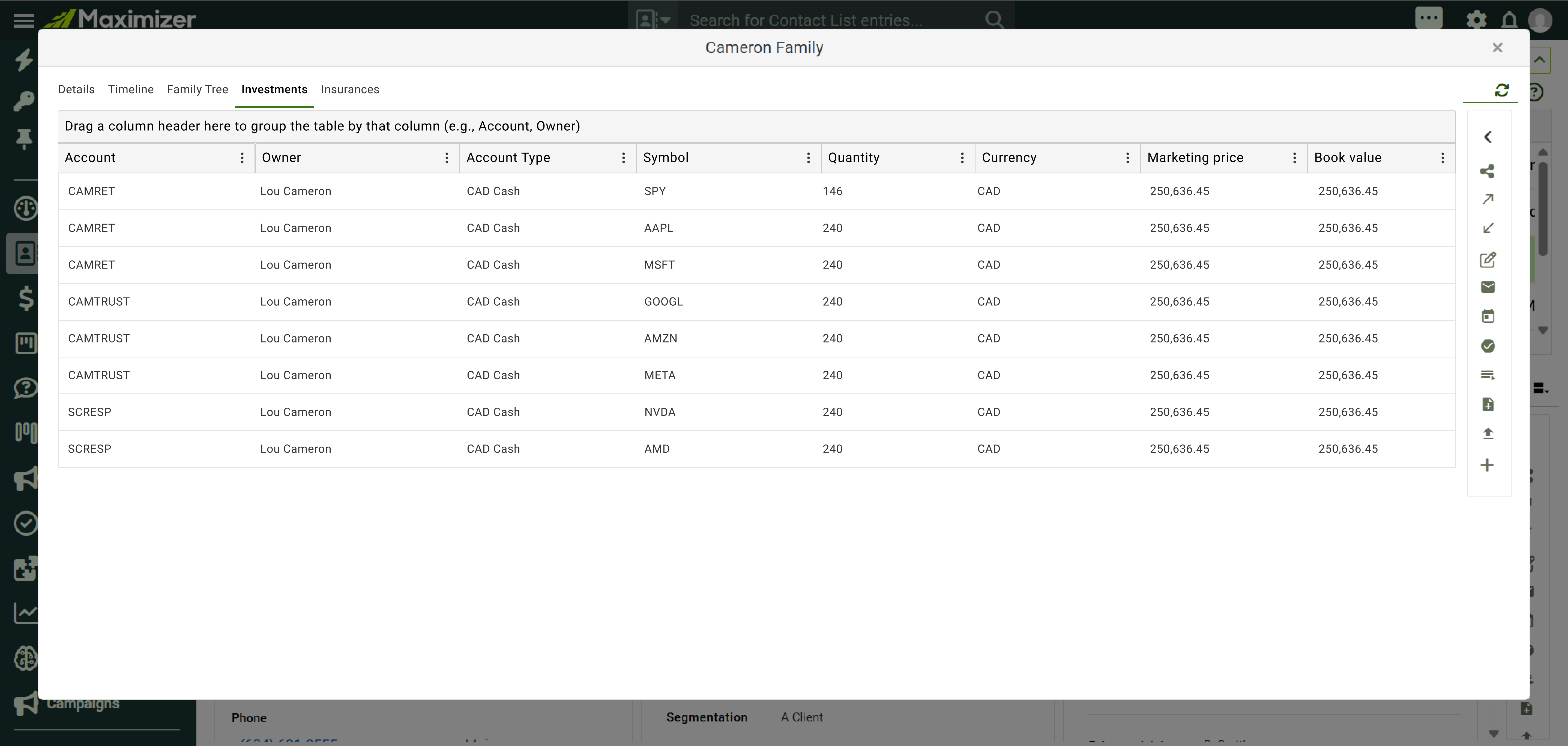
Drill down into a household's portfolio without leaving the module.
Add start dates for tasks
Edition: All Editions
Area: Web
What's new
A Start Date field has been added to the task dialog, so you can set when a task should begin alongside its due date.
Why it matters
Some work can't start until a certain date, such as a report that depends on data becoming available. Start dates make it clear when work should begin, so users know when to pick a task up rather than only when it is due.
How it works
- The Start Date field is in the task dialog and is off by default. Click the +Start Date button to show it.
- The start date is optional. The Due Date is still required.
- The Start Date can't be later than the Due Date. When a Start Date is shown, the task can't be set as recurring.
- Tasks with start dates appear in Tasks and Timeline. On the Tasks screen, you can filter by Start Date or Due Date.
- Start Date isn't available for tasks in Action Plan and Workflows, and tasks with start dates won't appear in Hotlist, Interaction, or Activities. Notifications are unchanged, with alerts and reminders still based on due dates. This change isn't applied in the Outlook add-in or mobile app.
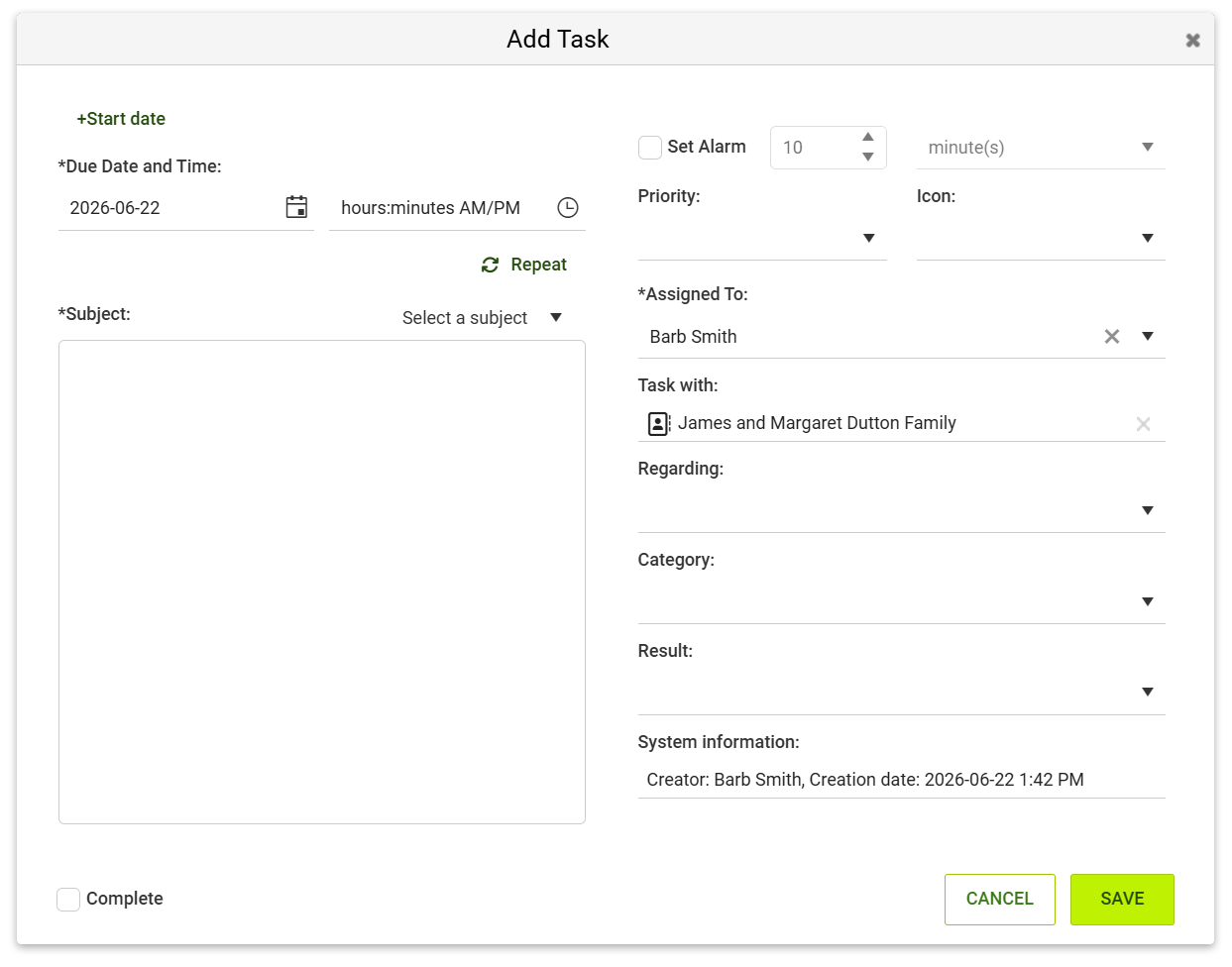
In the task dialog, Start Date is off by default.
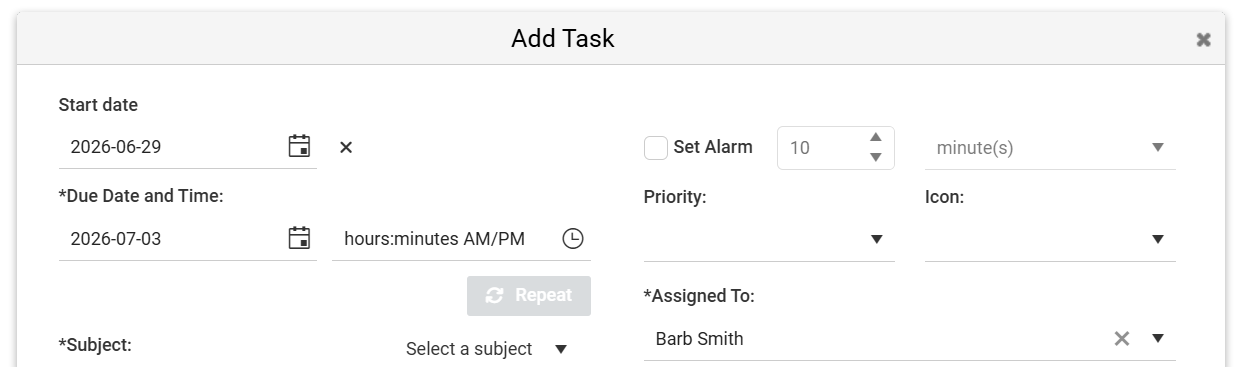
Clicking the +Start Date button displays the date field.
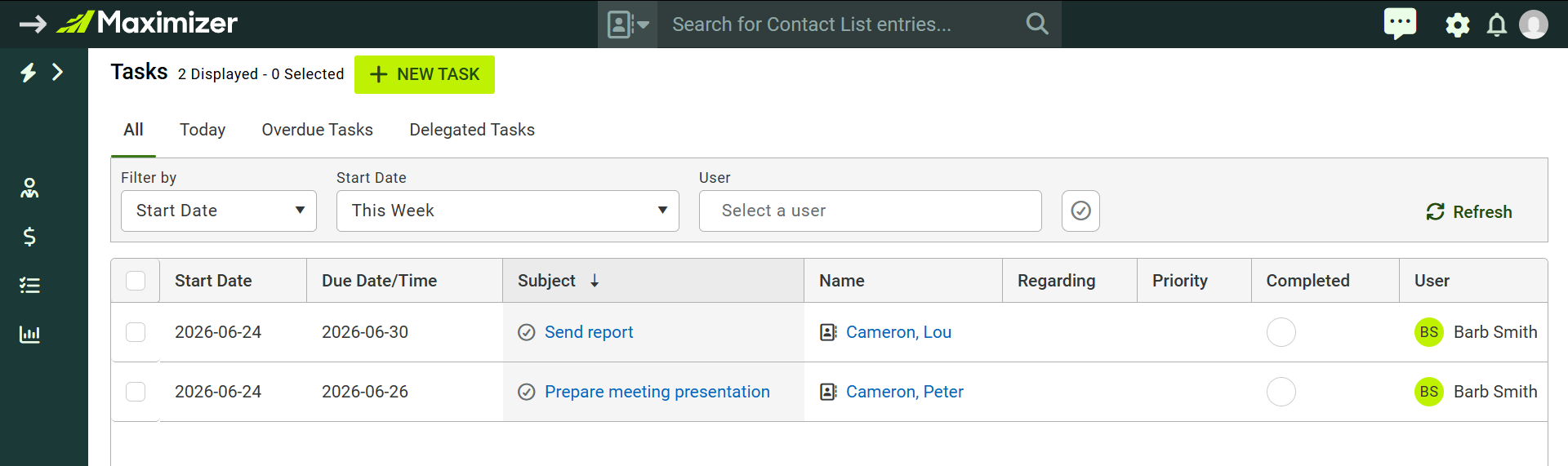
On the Tasks screen, you can filter by Start Date or Due Date.
IQ Boost: online source and global server
Edition: Financial Services Edition +, Business+
Area: Web
What's new
Global Server and Online Source are now available in the IQ Boost Security Center.
Why it matters
IQ Boost can now pull in real-time web information and combine it with your CRM data for smarter, more relevant insights. Whether you are researching a prospect, preparing for a client meeting, or spotting new opportunities, it enriches your existing client data with up-to-date market news, company developments, and industry trends. Enabling Global Server also raises the token limit for processing data.
How it works
- To turn on Global Server and Online Source, go to IQ Boost > Security Center and enable each option.
- After you save your changes, the selected options appear at the top.
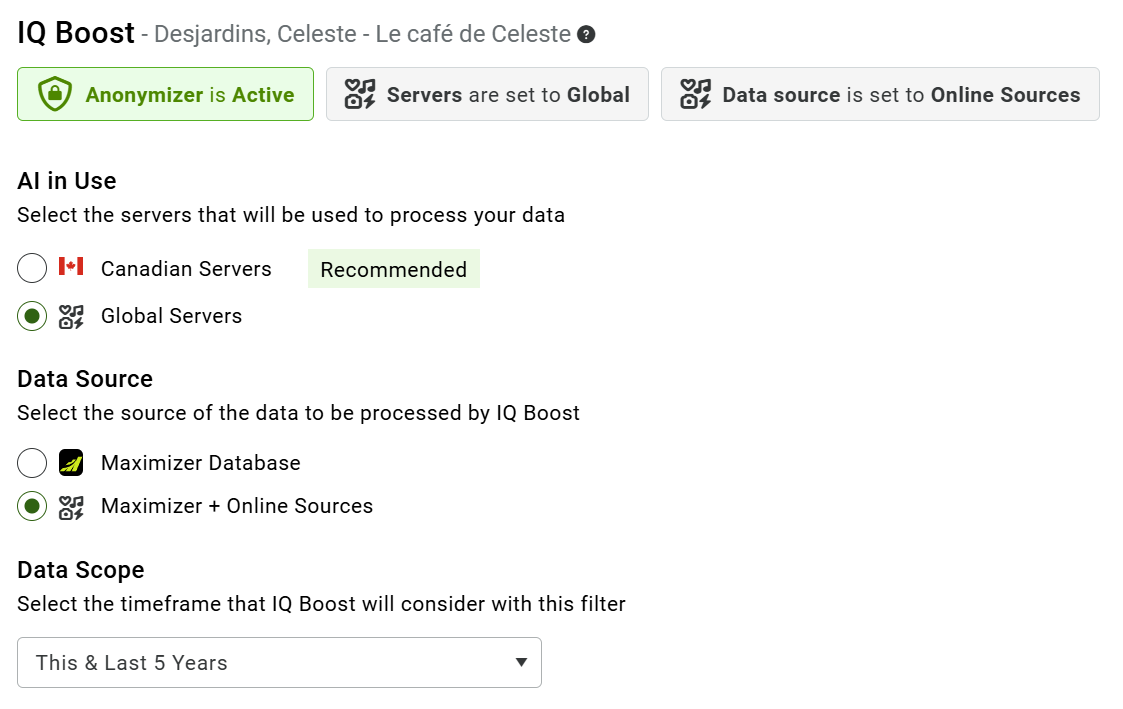
Global Server and Online Source in the IQ Boost Security Center.
IQ Boost: LLM streaming for immediate visual feedback
Edition: Financial Services Edition +, Business+
Area: Web
What's new
Responses now begin loading as soon as part of the answer has been generated.
Why it matters
This shows what the model is doing up front, displaying content as soon as part of the response is ready and continuing to load the rest as it becomes available.
How it works
- When a prompt is clicked, the response status is shown. Statuses include Getting Context, Anonymizing, Processing Custom Data Source, and Thinking.
- As soon as a portion of the response is retrieved, it is displayed.
- The remaining response appears as it is retrieved.
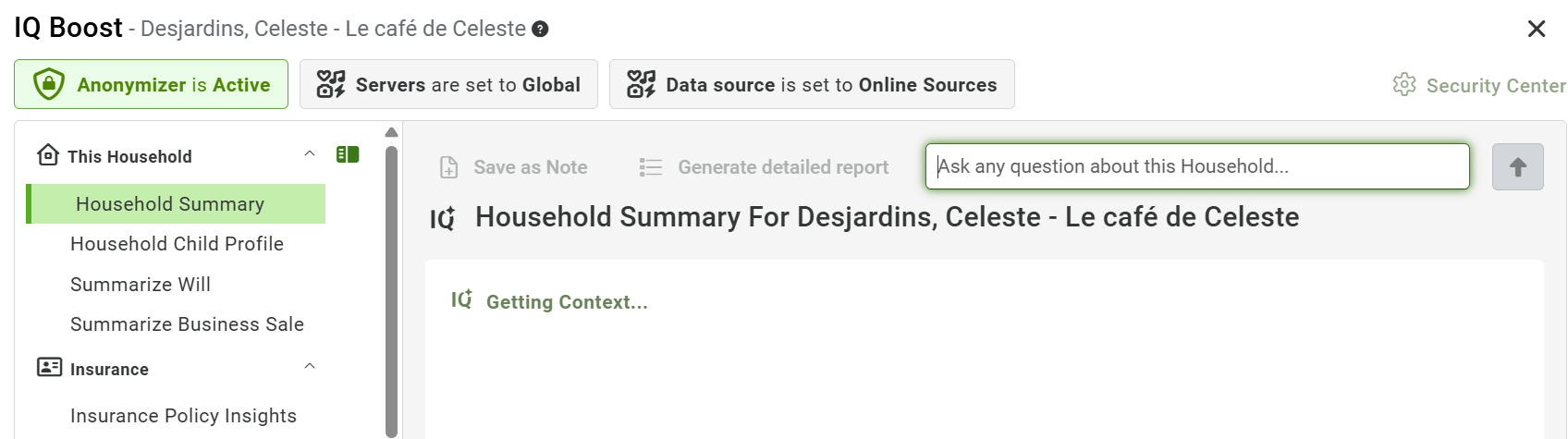
IQ Boost shows the response status while the reply streams in.
Improvements
Privacy-aware IQ Boost Timeline Summaries in Outlook
Edition: Financial Services Edition +, Business+
Area: Outlook
What has changed
AI Timeline Summaries in the Outlook add-in now work with Maximizer's anonymization settings. When anonymization is enabled, client data is protected during AI processing, and when you copy a summary to your clipboard you get the real, de-anonymized content ready to use.
Why it matters
For firms operating under Canadian privacy legislation or internal data governance policies, knowing that AI features respect your anonymization settings is essential. Timeline Summaries in Outlook now stay within your compliance framework, with no change to your workflow.
How it works
- No action required. If anonymization is enabled in your Maximizer IQ Boost settings, AI Timeline Summaries in the Outlook add-in apply it automatically.
IQ Boost: Anonymizer toggle moved to AI Hub
Edition: Financial Services Edition +, Business+
Area: Web
What has changed
The switch to turn the anonymizer on or off has moved from the IQ Boost Security Center to AI Hub.
Why it matters
The anonymizer now applies across IQ Boost, meeting preparation, and timeline summaries. Moving the switch to AI Hub means a single control covers all of these areas.
How it works
- Turn the anonymizer on or off in AI Hub. When IQ Boost is off, the anonymizer is also off. When IQ Boost is on, the anonymizer is enabled by default, and users can turn it off.
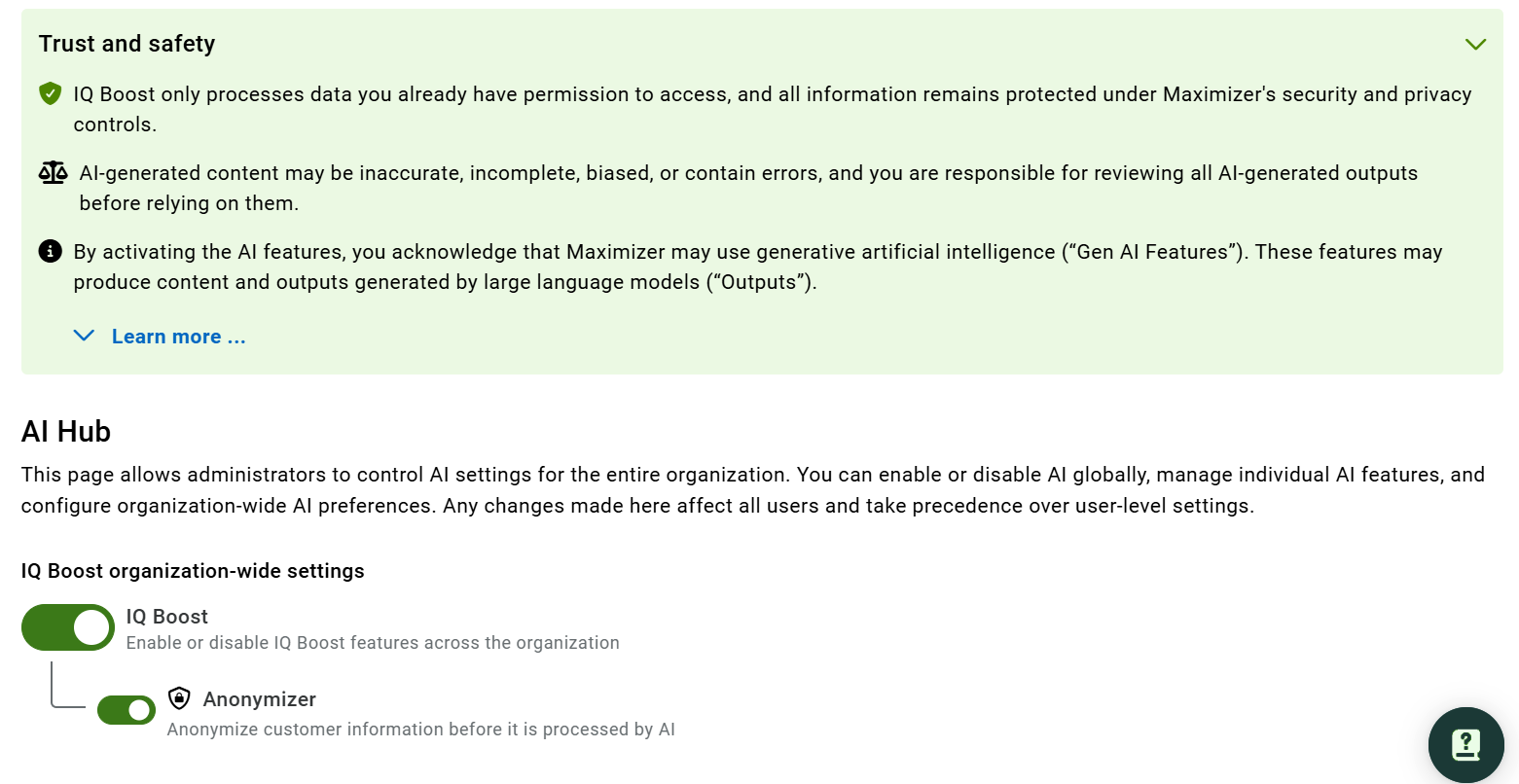
The anonymizer toggle now lives in AI Hub.
If you need assistance, contact support@maximizer.com