
Release Date: August 26, 2026
Summary
The August 2026 release brings two additions to the Maximizer add-in for Outlook: one consistent search across your entire Maximizer database from any Outlook page, and the ability to save outgoing emails to the right opportunities and cases before you send them. It also includes a rebuilt viewer for saved emails and a reordered Workflows screen. For iA Private Wealth and Investia customers, the new Investments Sync Report gives you a clear view of how your investment data is landing in Maximizer, along with the tools to resolve any mismatch yourself.
Improvements
Maximizer CRM for Outlook: search across your entire contact list
Edition: All Editions
Area: Outlook
What has changed
You can now search your Maximizer database from every home page in the Outlook add-in, covering Mail Read, Mail Compose, Calendar Read, and Calendar Compose, using a single consistent search experience. Start typing a name, email, or company and a results panel expands to show matches grouped by Individuals/Households, Contacts, Companies, and Leads.
Why it matters
Finding the right client record used to depend on which Outlook page you were working from. One consistent search across every page lets you confirm who you are dealing with and act on their record without leaving your inbox or calendar.
How it works
- Open the Maximizer add-in from any Outlook page, whether you are reading or composing an email, or viewing or creating a calendar event.
- In the search field, type a name, email address, or company name. The results panel expands automatically as you search.
- Browse the results, grouped by Individuals/Households, Contacts, Companies, and Leads, and review each entry's details to confirm the right match.
- Select any result to open its full entry details page, where you can use the standard action bar to create records such as a Task, Case, or Opportunity.
- Use the back navigation to return to your results. Your search is preserved.
- Clear the search field at any time to return the page to its previous state.
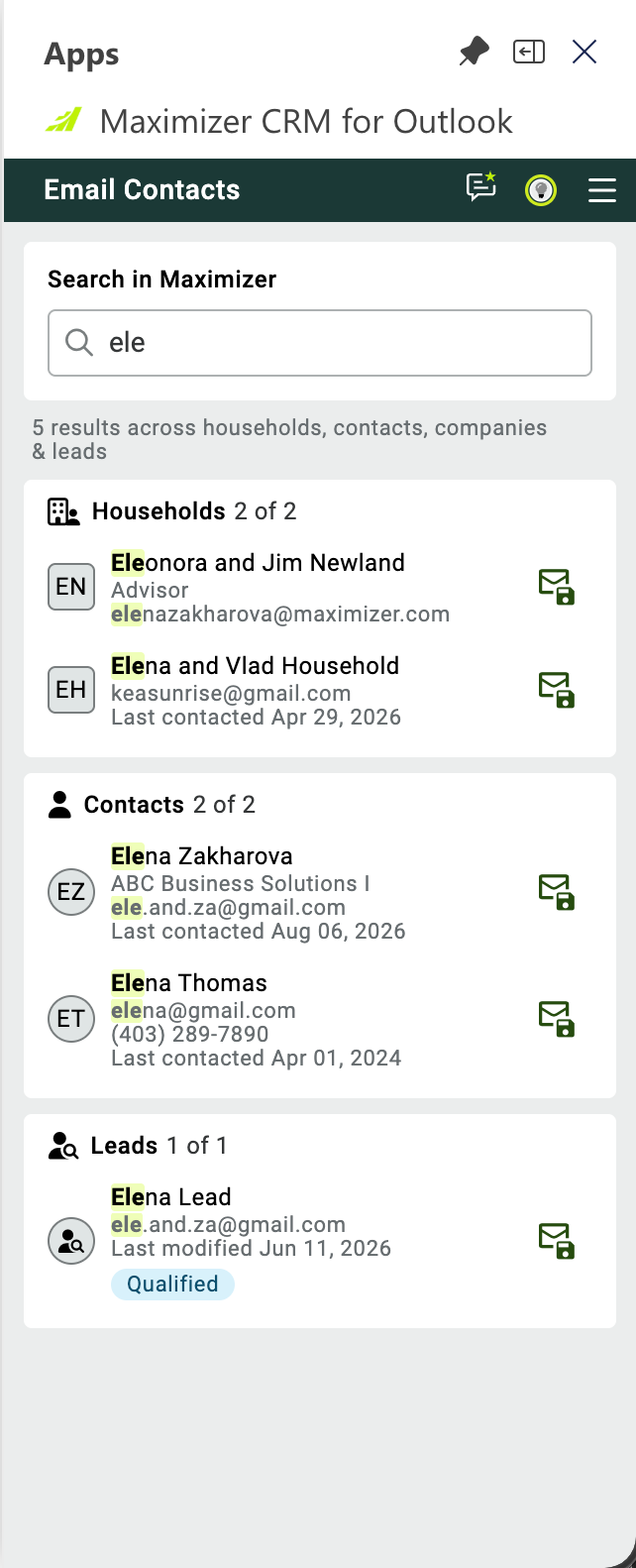
Search from any Outlook page and results group by households, contacts, companies, and leads
Maximizer CRM for Outlook: save outgoing emails to opportunities and cases
Edition: All Editions
Area: Outlook
What has changed
You can now save an outgoing email to any relevant Opportunity or Case from the Maximizer Outlook add-in while you are still composing it. As you write, the add-in reads the recipients on your email and surfaces the Opportunities and Cases already linked to those Contacts and Companies, so the most relevant records are in front of you. You can also search for any other Opportunity or Case, or select View all to browse the full list.
Why it matters
The emails that move a deal forward or resolve a client issue are attached to the right record before they leave your outbox. Your client history stays complete and your team sees the full picture without anyone having to file the message after the fact.
How it works
- Open Outlook and begin composing a new email, reply, or forward.
- Launch the Maximizer add-in and open the Save email to Opportunities and Cases section.
- Review the related Opportunities and Cases shown automatically based on your email's recipients.
- To attach the email elsewhere, use the search field to find another Opportunity or Case, or select View all to open the full list.
- Select one or more records you want to save the email to.
- Click Save Email. Each selected record shows a checkmark to confirm the email has been saved.
New email viewer
Edition: All Editions
Area: Web
What has changed
The email viewer has been rewritten to display saved emails correctly. It works the same way as before: you can open and view a saved email in Timeline, and all existing functions remain available, including Reply, Reply All, Forward, Print, and Edit Properties. Attachments are displayed and can be downloaded, and the viewer can be resized and maximized.
Why it matters
The previous viewer was built many years ago, so some newer email messages did not render correctly and the experience looked dated. Saved emails now display as intended, which makes client history easier to read and rely on.
Note: The email compose dialog is out of scope for this improvement. You cannot open multiple instances of the email viewer at the same time.
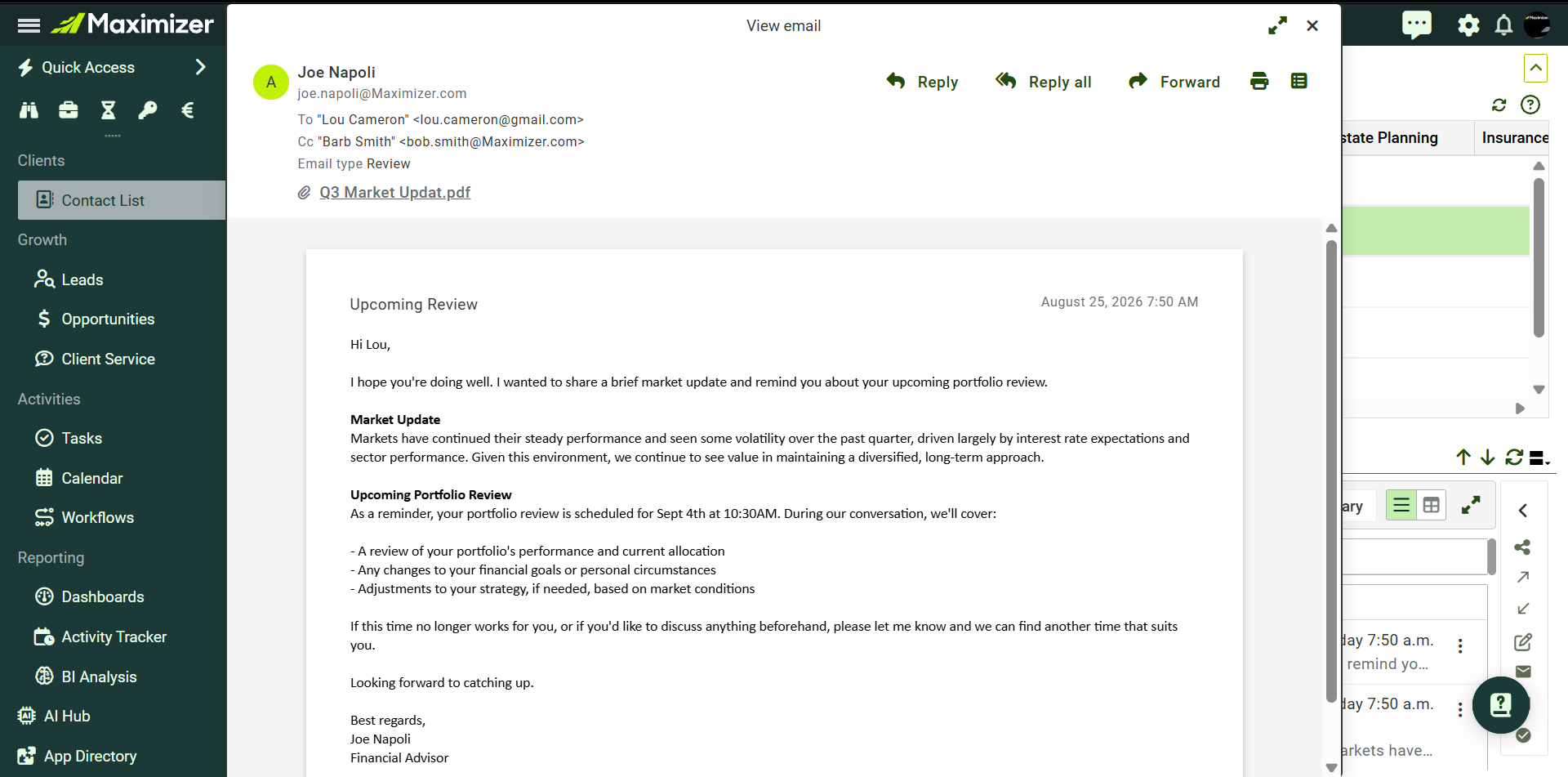
Saved email open in the rewritten viewer with Reply, Forward, Print, and attachments available
Tabs in the Workflows screen
Edition: Financial Services Edition +, Business+
Area: Web
What has changed
The Workflows screen now opens on the Workflows tab, which has moved to the left of the Overview tab.
Why it matters
Landing directly on the list of active workflow tasks puts the day's follow-up work in front of you first, with the Overview still one click away.
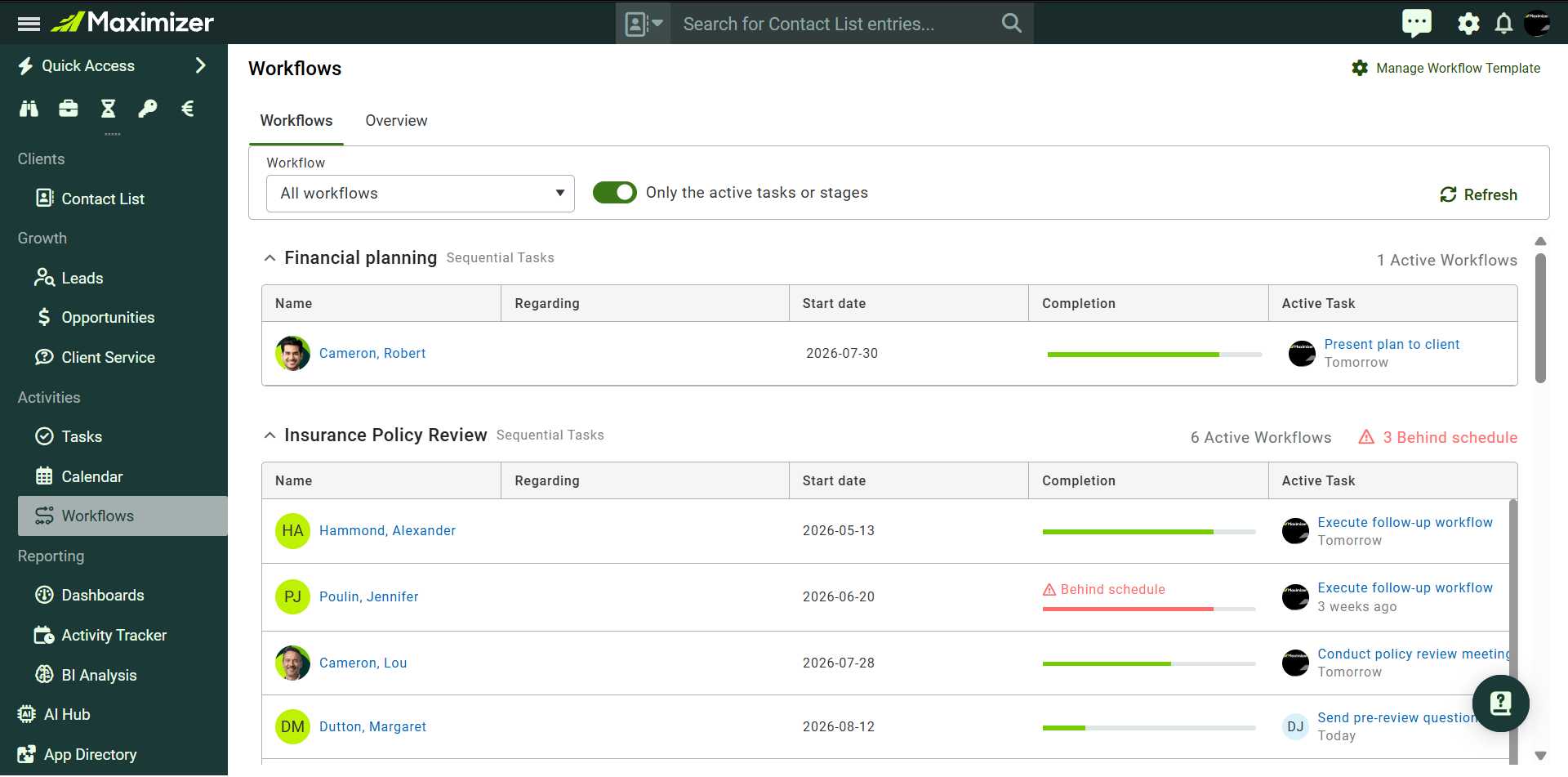
Workflows screen opening on the Workflows tab, now to the left of Overview
New Features
Investments Sync Report
Edition: Financial Services Edition, Financial Services Edition +
Area: Web
Availability: iA Private Wealth and Investia customers only. iA Private Wealth data flows through the Plug and Play integration, and Investia data flows through OpenAPI.
What's new
The Investments Sync Report is a new tool in the Investments Dashboard that shows you exactly how your investment data is landing in Maximizer. It logs every sync, so you can see at a glance which records matched to a client, which were skipped, and which are waiting on a decision from you. When a record does not match, the report tells you why and lets you resolve it on the spot, either by correcting the client record or by linking the incoming data to the right entry.
Why it matters
Your client data drives everything: household AUM, annual reviews, reporting, and the conversations you have across the table. The Sync Report gives you a straight answer on whether that data is complete, and puts the fixes in your hands rather than in a support queue. You can see the cause of any mismatch, clear it in a couple of clicks, and know the next sync will pick it up.
How it works
- Navigate to the Investments Dashboard in Maximizer and select Sync report. The badge shows how many records need your attention.
- Review the summary to see how many records linked successfully, how many need attention, and how many are queued for the next sync.
- For any unmatched record, select Match or Create to see why it did not match automatically, such as a missing date of birth or email address on the client record.
- Link the record to the correct existing entry, or create a new contact, household, or company from the incoming data.
- Once you submit your decisions, the records are processed on the next scheduled sync run.
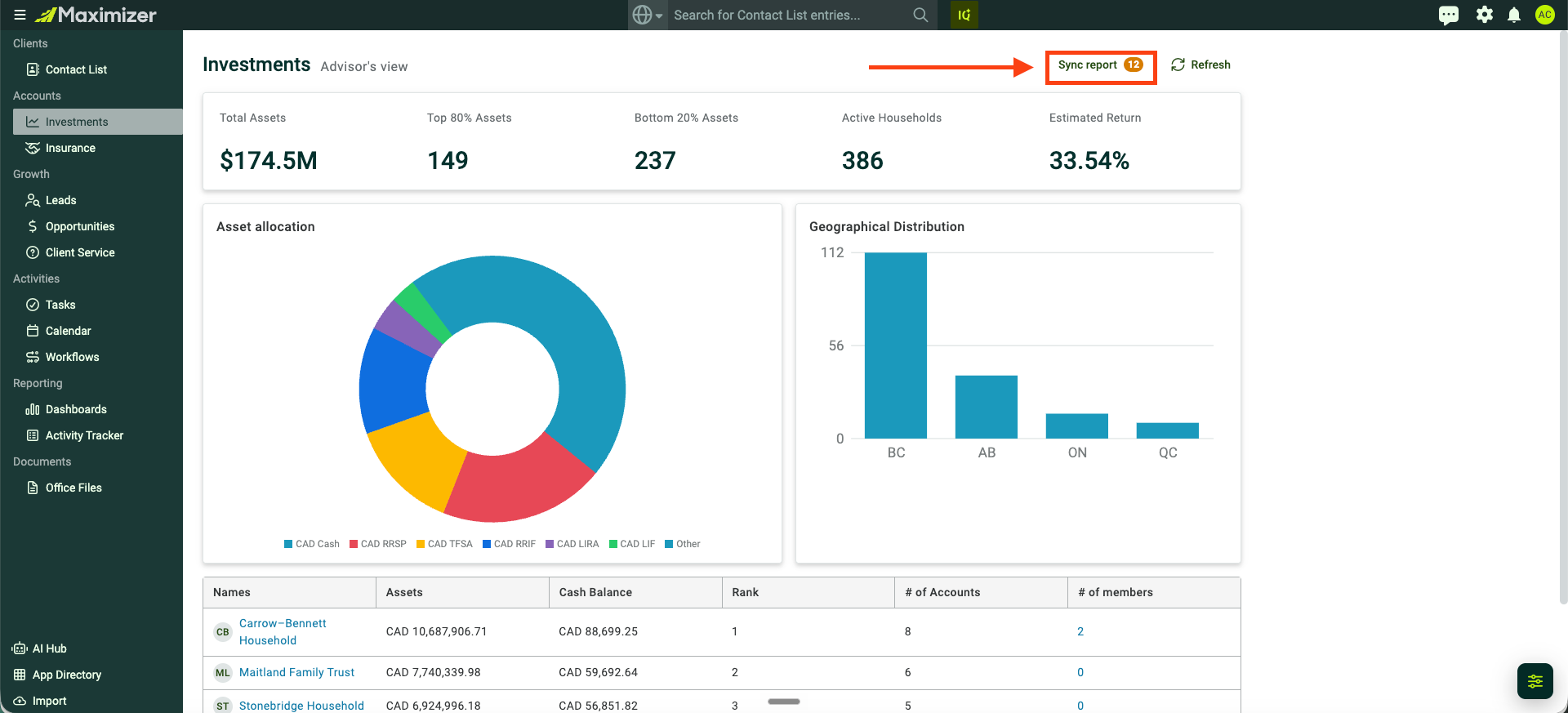
Sync report opens from the Investments Dashboard, badged with the number of records needing attention
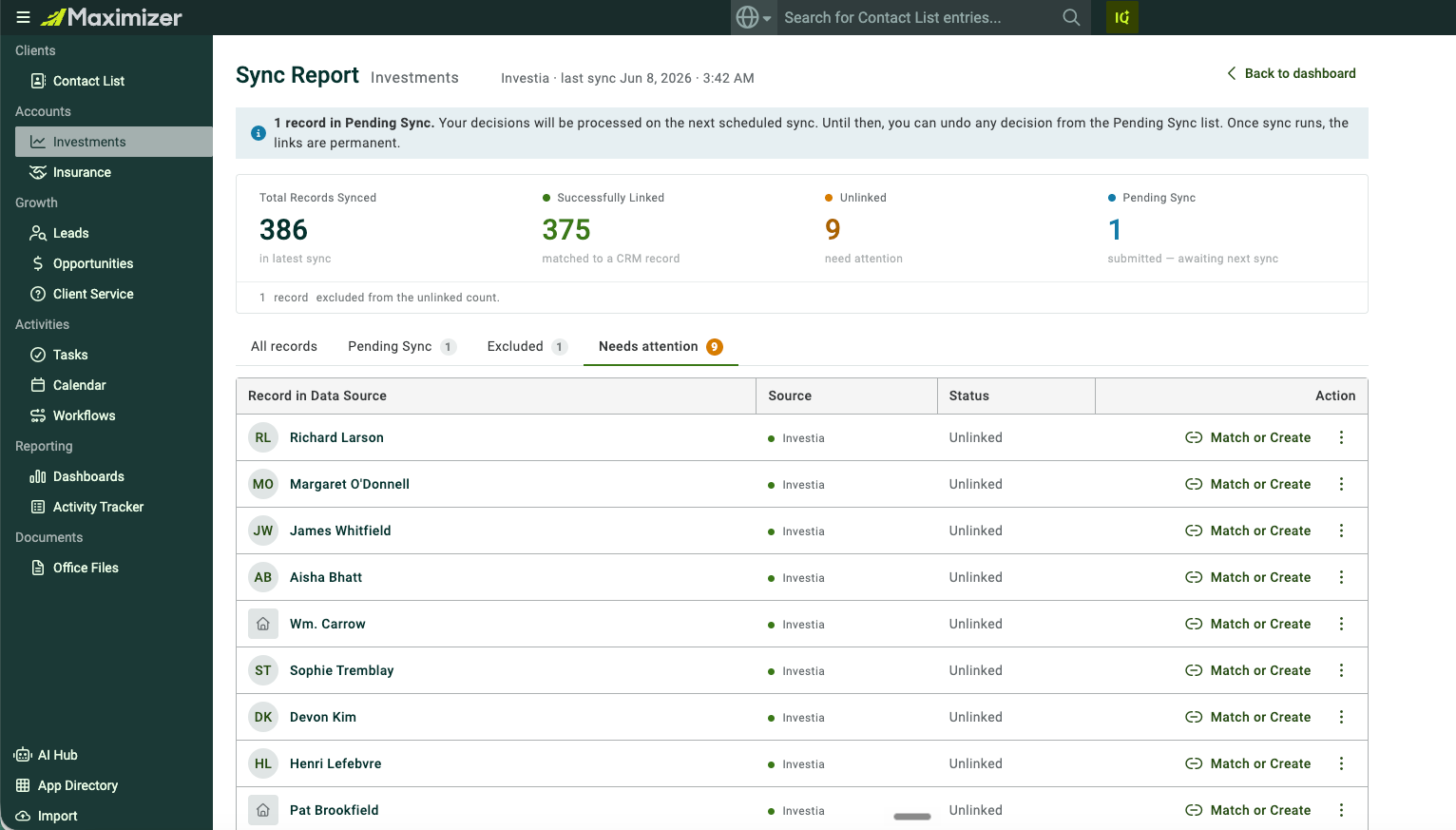
The summary shows records linked, records needing attention, and records queued for the next sync
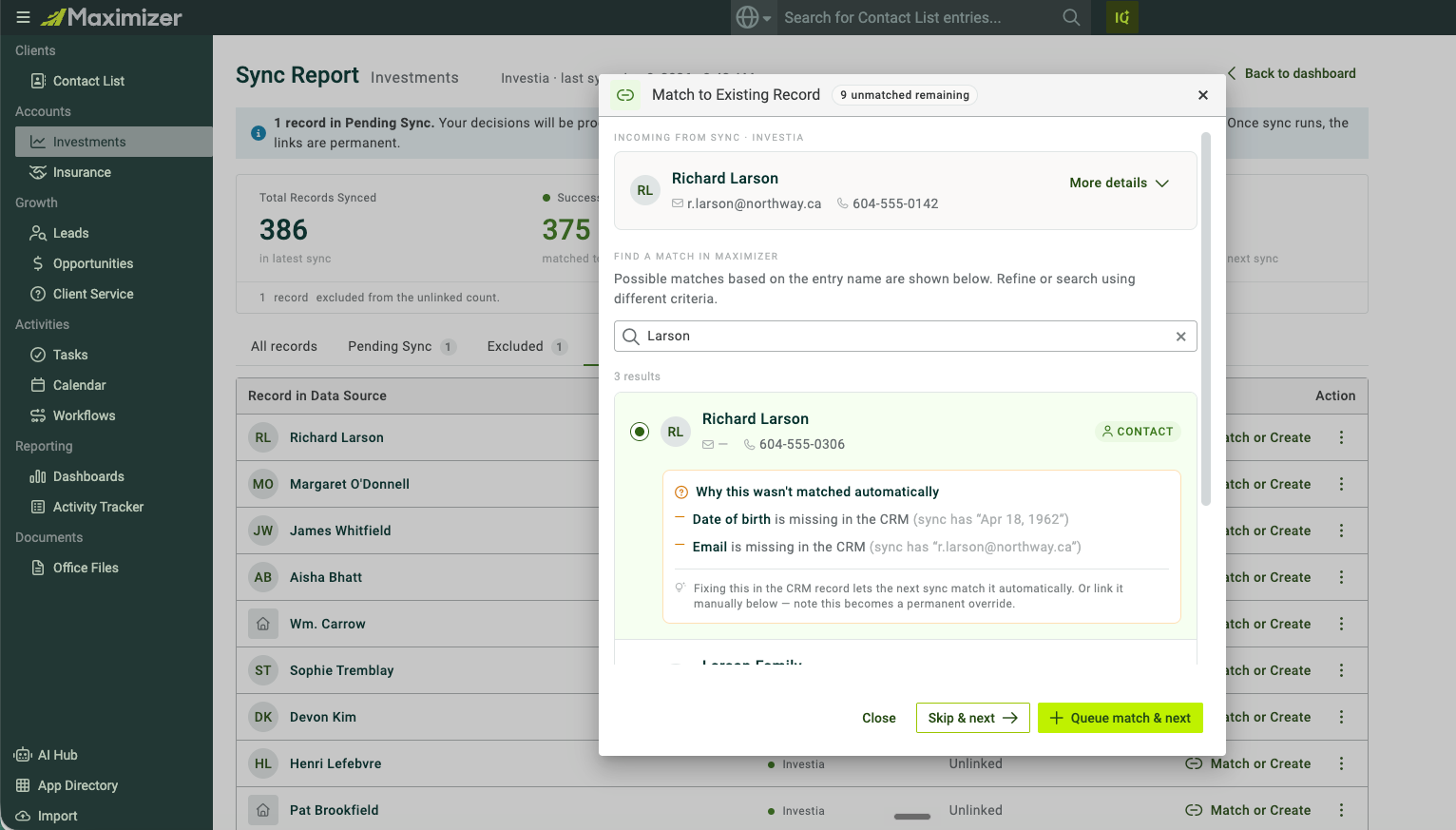
Match to Existing Record explains why a record did not match and lets you link it to the right client
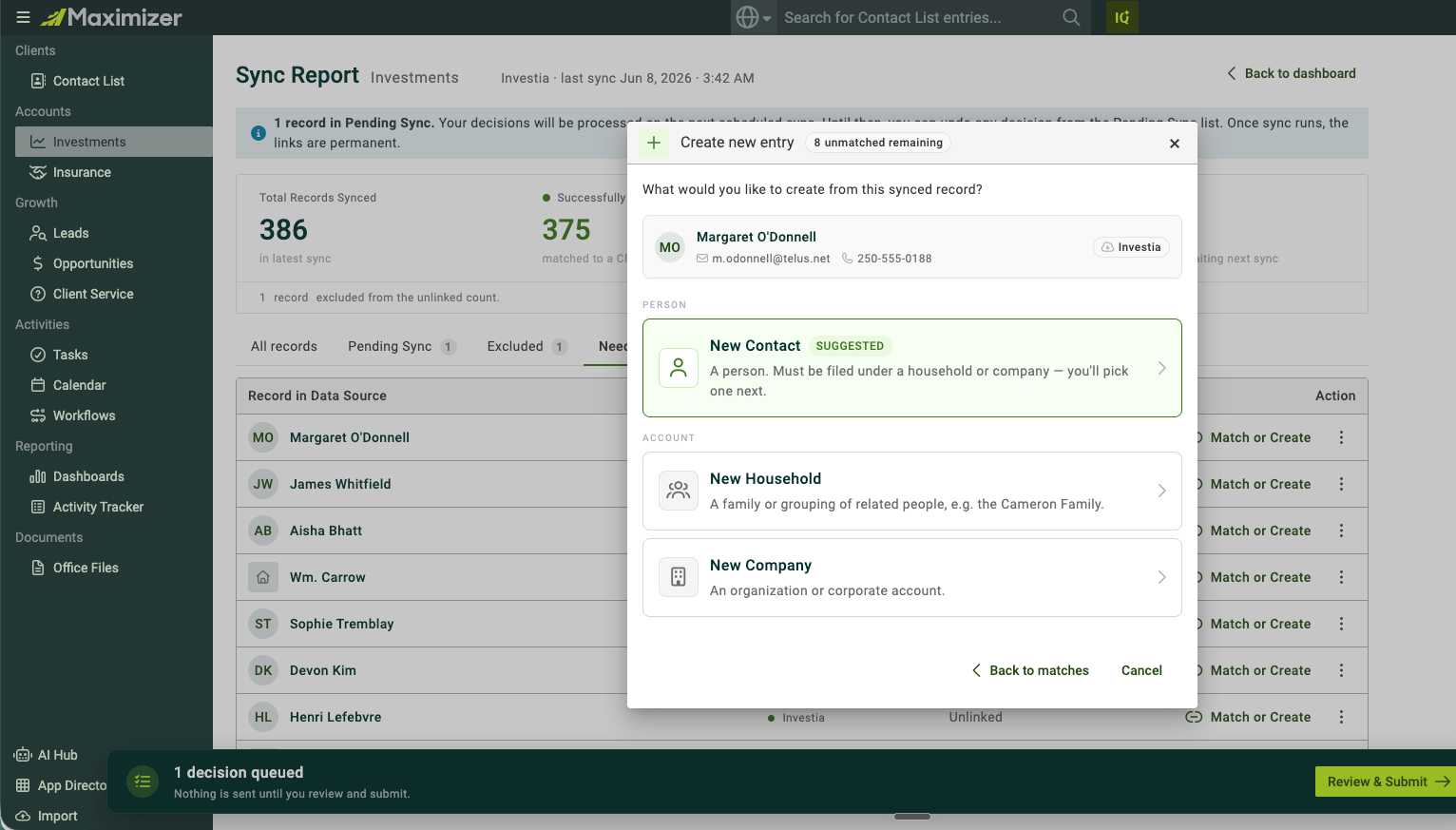
Create new entry turns an unmatched record into a new contact, household, or company
If you need assistance, contact support@maximizer.com