
Release Date: July 29, 2026
Summary
The July 2026 release extends workflows to leads, so teams can run a structured follow-up process from the moment interest arrives. It also deepens the Maximizer add-in for Outlook: search your CRM and add attendees directly from Outlook Calendar, and use the new IQ Boost Email Assist prompts to draft replies, summarize threads, and capture action items without leaving your inbox.
New Features
Workflows for Leads
Edition: Financial Services Edition +, Business+
Area: Web
What's new
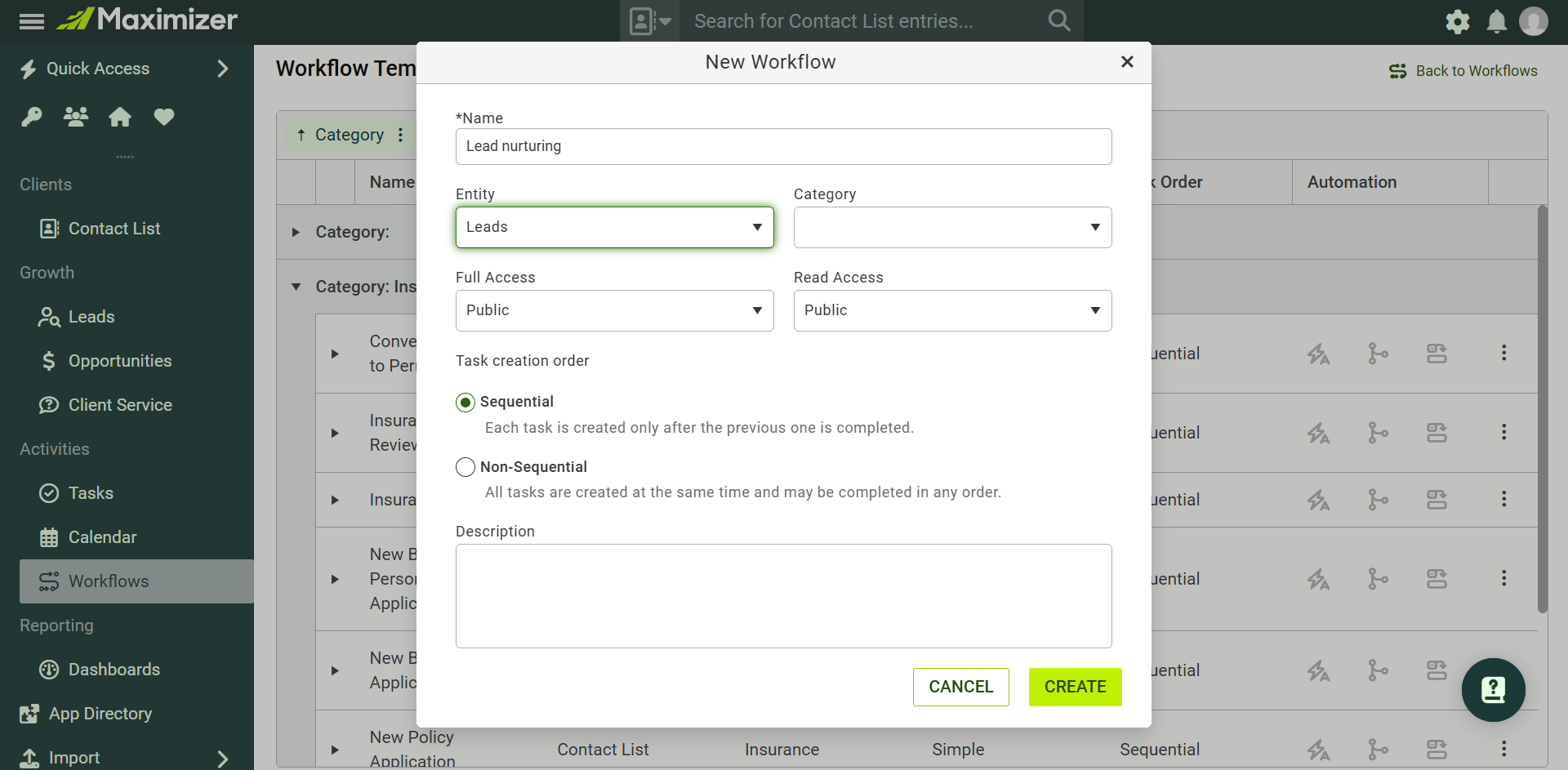
Workflows now support leads. Create workflow templates with Leads as the entity type, then start a workflow directly from the Lead Details screen to run a consistent follow-up process for every new lead.
Why it matters
Leads often carry time-sensitive context, such as a retirement planning inquiry, a referral, or a webinar sign-up, that gets lost without a clear follow-up process. Extending workflows to leads helps teams respond faster, prevents missed follow-ups, and moves prospects toward qualification with less manual effort.
How it works
- When you create a workflow template, specify an Entity type: Contact List / Address Book or Leads. Select Leads to create a workflow template for leads.
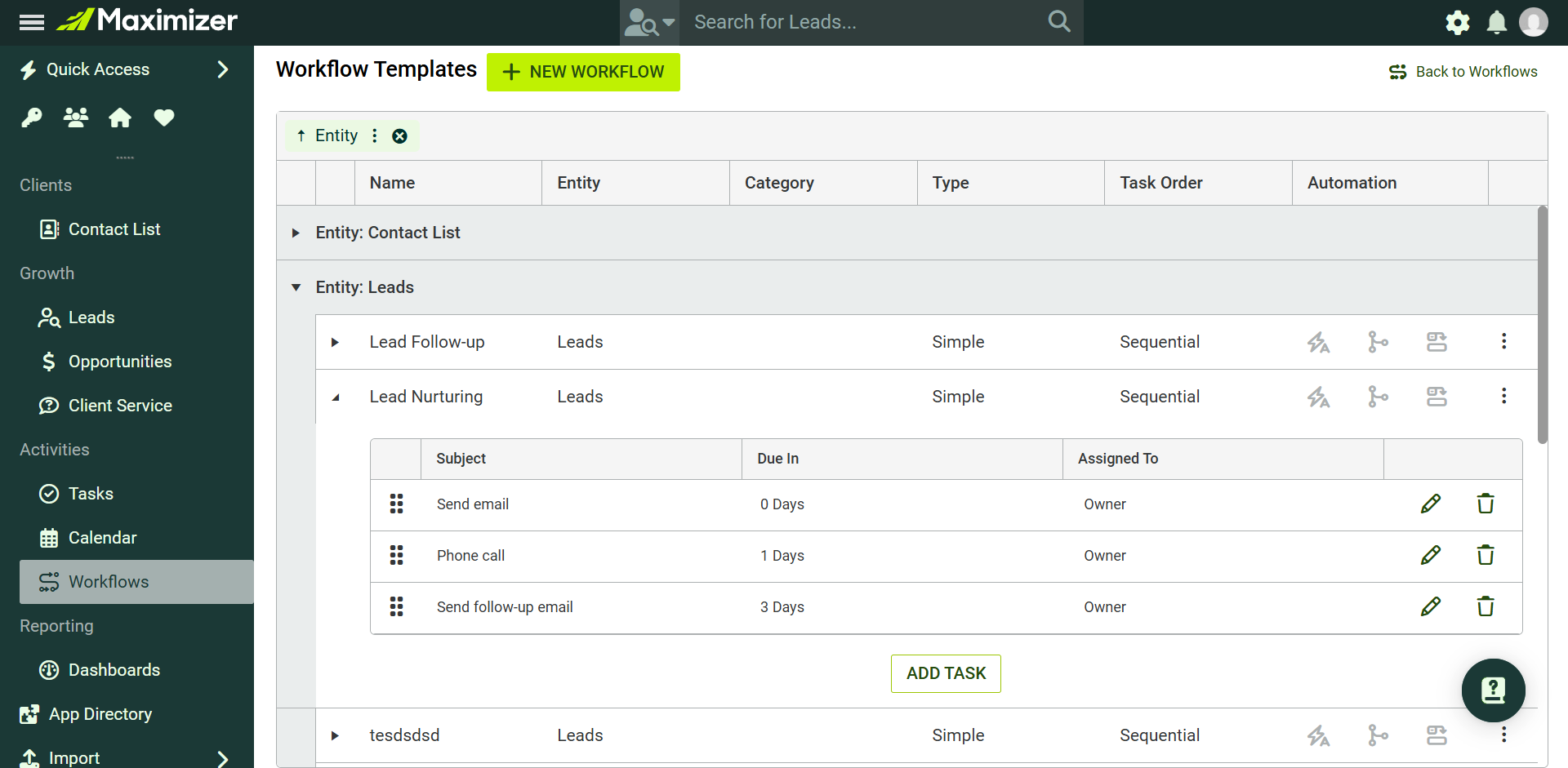
- Edit tasks the same way as for Address Book entries. Note: in a workflow for leads, the "Assigned to" merge field uses Owner instead of Account Manager.
- In the Workflow Templates screen, group workflows by entity type by dragging and dropping the Entity column into the header.
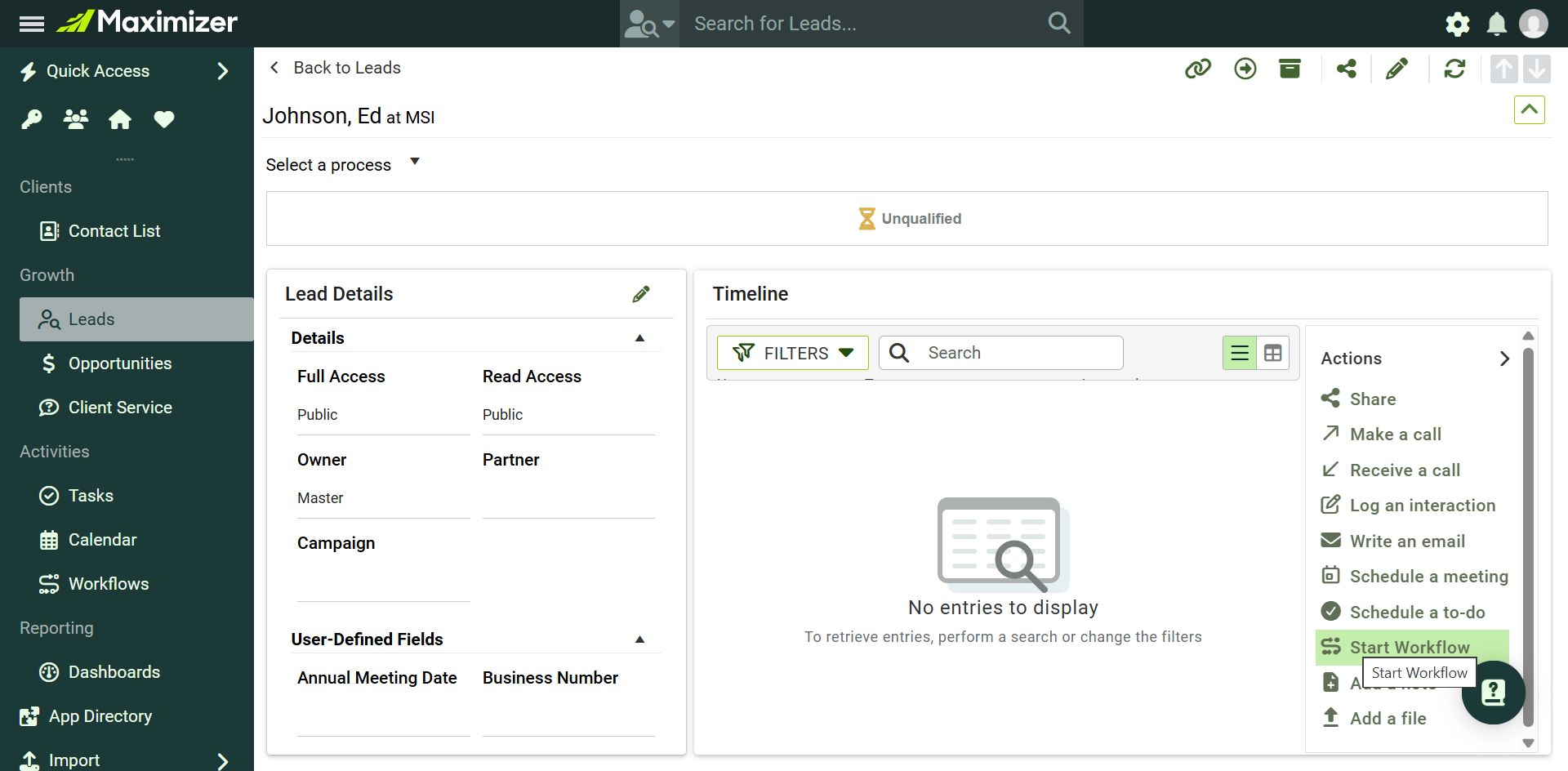
- In the Lead Details screen, click Start Workflow in the Action panel and select a workflow. Only workflows for leads are available.
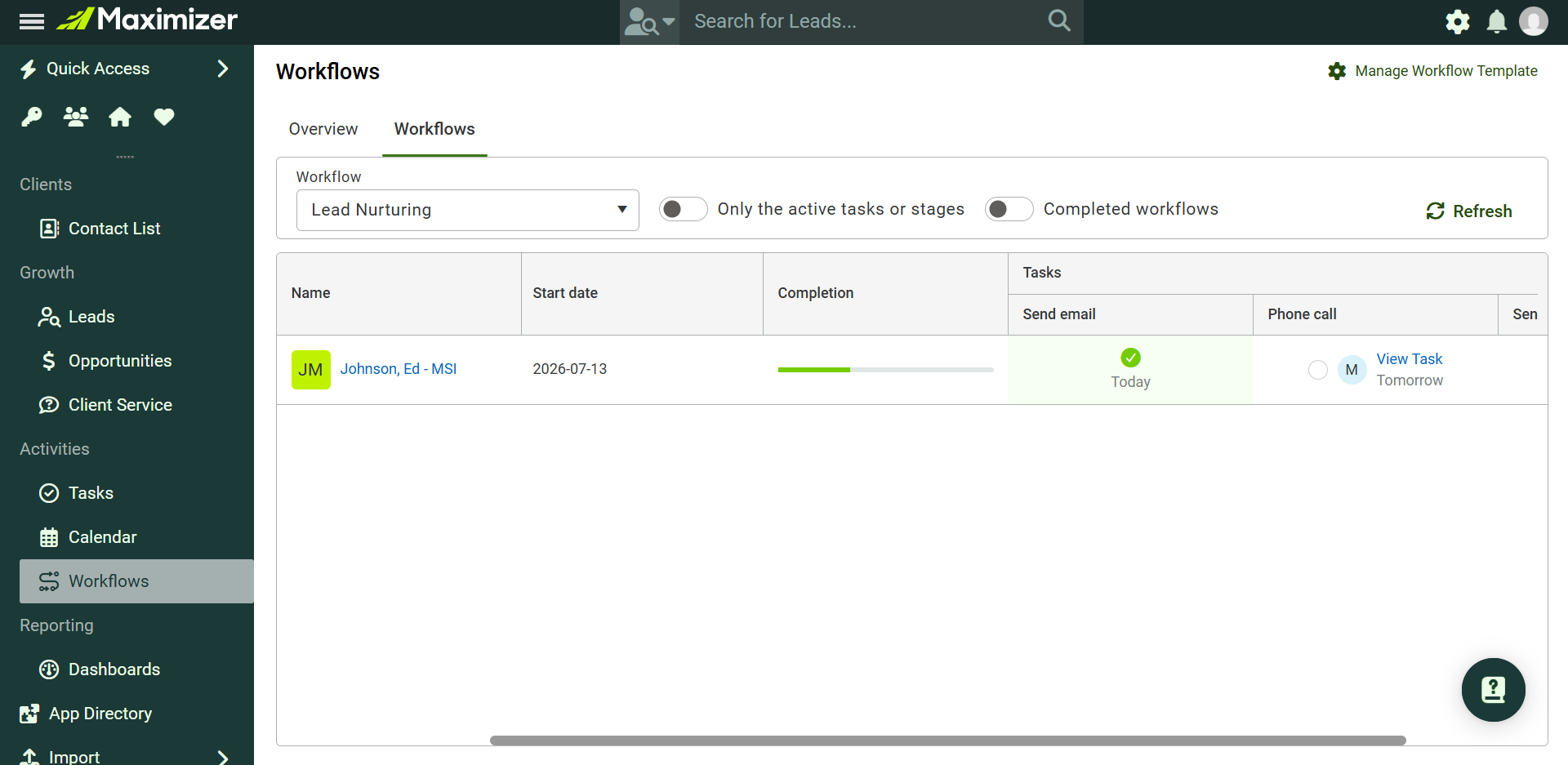
- Work on workflow tasks for leads in the Workflows screen. If the workflow uses sequential tasks, completing one task creates the next.
Note: Automation is not supported for workflows for leads.
Maximizer Add-in in Outlook Calendar
Edition: All Editions
Area: Outlook
What's new
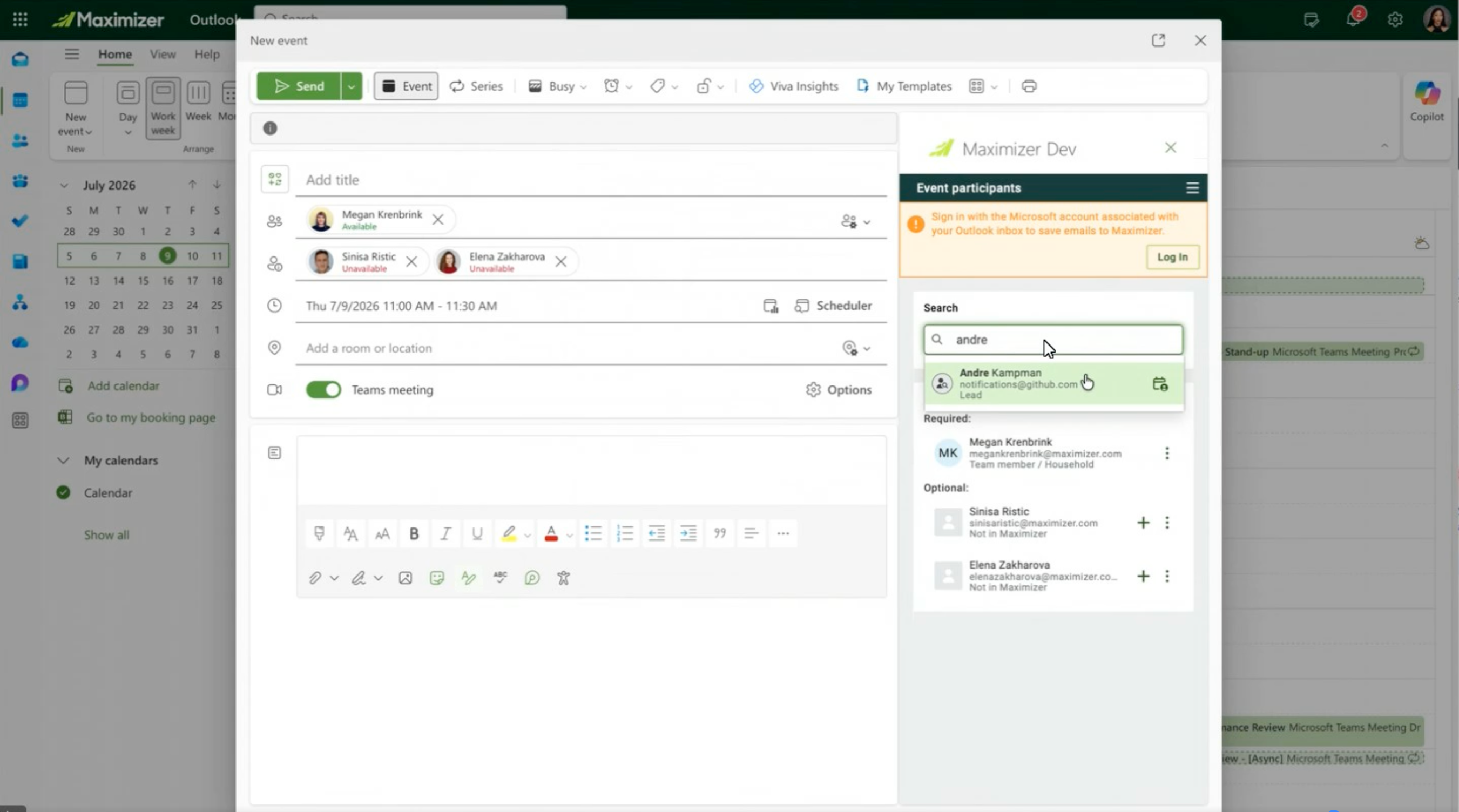
You can now search your Maximizer database directly from Outlook Calendar. When setting up a meeting, type a name, email, or company into the add-in to find matching contacts, then add them as Required or Optional attendees with a single click, updating the Outlook event in real time. Attendees are organized into two groups, In Maximizer and Not in Maximizer, so you always know who is in your CRM and who is not.
Why it matters
Preparing for client meetings means knowing who you are meeting with: their history, their needs, and where things stand. Connecting your scheduling workflow to your CRM lets you invite the right people, confirm their details, and walk into every meeting prepared, all without switching applications.
How it works
- Open Outlook Calendar and select New event or Edit event.
- Click Apps in the event toolbar and select Maximizer CRM for Outlook. If the app is not installed, install it first from the Add apps interface in the left navigation bar.
- In the Maximizer side panel, enter a name, email address, or company name to search your Maximizer database.
- Select a result and choose Required or Optional to add the person to the attendee list. They appear in the event immediately.
- Review the attendee side panel to see who is In Maximizer and who is Not in Maximizer.
- Click any Maximizer contact in the side panel to open their full CRM entry and access key details or take action.
IQ Boost Email Assist
Edition: Financial Services Edition +, Business+
Area: Outlook
What's new
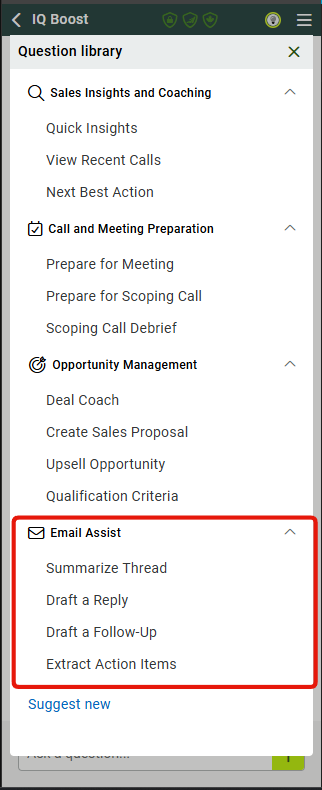
IQ Boost in the Maximizer Outlook add-in now includes Email Assist, a set of predefined prompts built for email workflows: Draft a Reply, Draft a Follow-Up, Summarize Thread, and Extract Action Items. Each prompt draws on both the current email thread and the matched contact's CRM profile, so the output is grounded in real context. Email drafts can be inserted directly into a compose or reply window or copied to your clipboard, and action items can be turned into Maximizer tasks with a single click.
Why it matters
Managing client relationships means keeping up with a constant stream of emails: drafting replies, chasing follow-ups, and making sure nothing falls through the cracks. Email Assist brings Maximizer's intelligence into your inbox, with context from both the thread and your CRM, so you can respond faster, follow up reliably, and turn every email into a clear set of next steps.
How it works
IQ Boost capabilities must be enabled in your Maximizer app under AI Hub > IQ Boost Insights. If you do not have access, ask your Maximizer system administrator, reach out to your account manager, or contact support@maximizer.com.
- Open an email in Outlook and launch the Maximizer CRM app for Outlook.
- Pick the Contact or Household that is the email recipient and navigate to IQ Boost. The Email Assist prompt group is available in the Question Library.
- Select a prompt: Summarize Thread, Draft a Reply, Draft a Follow-Up, or Extract Action Items.
- Wait for the result to generate. A Processing indicator is shown while it loads.
- For email drafts: if you are composing or replying, click the email icon in the bottom toolbar to insert the draft directly into the compose window, or copy it to your clipboard. If you are reading a received email, use the email icon to open the draft in a new email window, or copy it to your clipboard.
- For action items: review the list, then click any item to create it as a Maximizer task directly from the panel.
- Use the thumbs up and thumbs down buttons to share feedback on any response.
If you need assistance, contact support@maximizer.com